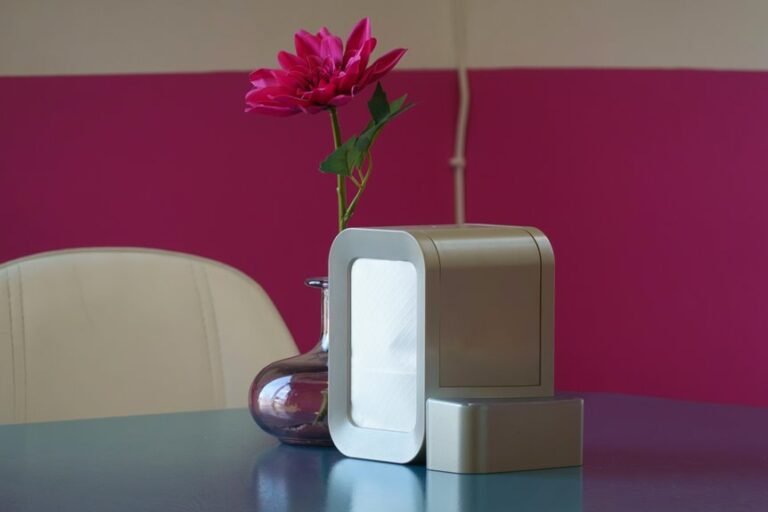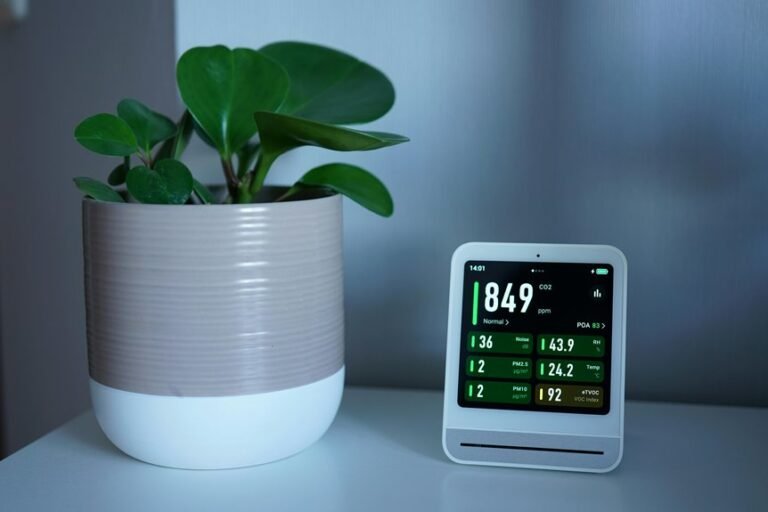



Using a Levoit air purifier is simple: unpack it, remove all plastic and shipping materials, and place the filter correctly. Set the purifier on a flat surface with space around it so air can move freely. Plug it in, turn it on, and choose the fan speed or mode that fits your room. Once it starts running, the air quality light helps show what the purifier is sensing.
Unbox Your Levoit Air Purifier
Before you power up your Levoit air purifier, remove all packaging materials from the unit and its components.
Begin your unboxing components review with a visual inspection, confirming the housing, top section, filter compartment, and power adapter arrived intact. Should anything look cracked, loose, or misaligned, pause installation and document the issue.
Next, separate the top half from the purifier body according to the unit’s locking mechanism. Retrieve the internal accessories and verify each item against your setup checklist. After clearing inserts and protective wraps, reinstall the top half and twist until it locks securely.
Then connect the power adapter to the designated port and plug it into a grounded outlet. Finally, position the purifier with at least 15 inches of clearance on all sides for proper airflow.
Remove the Filter Packaging
With the unit positioned and accessible, open the purifier and remove the filter from its compartment so you can discard the protective plastic wrapping. Separate the housing as your model requires, then lift out the filter and any packed accessories.
Inspect the filter surface carefully so you remove packaging completely before operation.
If any film remains, airflow will be restricted and performance diagnostics will immediately trend below specification. You’ll want to discard plastic, reinstall the filter correctly, and confirm nothing obstructs the intake path.
Keep the pull tabs oriented as designed for your model, and seat the filter evenly inside the chamber. Then reattach the purifier body and twist or lock it until it’s secure.
You’re setting your Levoit up the right way, just like experienced users do in the community.
Place Your Air Purifier in the Right Spot
Choose a location that gives the Levoit unobstructed airflow on every side, ideally maintaining at least 15 inches of clearance from walls, furniture, curtains, and other barriers. This baseline supports intake efficiency, stable circulation, and reliable particulate capture, so you’ll get performance that matches your space and keeps your setup aligned with best practice.
For ideal room placement, set the unit where air naturally moves, such as bedrooms or frequently occupied areas with open circulation paths. Avoid tight corners, blocked shelves, or cramped zones that create recirculation and reduce purification efficiency.
Use practical airflow clearance tips: verify surrounding surfaces don’t restrict vents, confirm the unit sits level, and inspect the area for damage, moisture, or instability. Whenever you place it correctly, you’re setting your Levoit up like experienced users do, with confidence and consistency.
Turn On Your Levoit Air Purifier
Once the purifier is positioned correctly and connected to power, tap the control button to turn it on and verify the panel responds immediately. Confirm illumination, listen for fan startup, and observe whether the touch interface registers input without delay. If you’re unsure about the power button location, inspect the top control surface and reference your model markings before proceeding.
Next, cycle through available fan speeds to confirm normal operation and stable response. You should see mode changes occur as each touch command is accepted. On smart models, hold the control button for five seconds to initiate Wi Fi pairing steps and prepare app connectivity. Should the unit doesn’t respond, recheck the adapter connection, outlet status, and assembly lock. Following this process, you’re operating your purifier like an informed Levoit user with confidence.
Check the Air Quality Indicator
After you power on the unit, check the air quality indicator to verify current room conditions.
You’ll read the indicator colors as a real-time status signal, with each color corresponding to a specific air quality level.
This lets you diagnose particulate load quickly and adjust purifier operation when the reading shows reduced air quality.
Read Indicator Colors
The air quality indicator gives you a real-time status check, so watch its color before you adjust the purifier’s fan speed or placement. Treat it like a diagnostic interface: you’re verifying system response, not guessing. Learn the indicator color meanings for your specific Levoit model, then compare them with the current room conditions and purifier behavior. If the display changes quickly, observe the light signal patterns and confirm the sensor is actively detecting airborne particles.
As part of your setup routine, check the indicator after startup, after moving the unit, and after opening windows or doors. You’ll build confidence through observing consistent visual feedback with each environmental change. When the indicator remains unchanged in noticeably different conditions, inspect placement, airflow clearance, and sensor area cleanliness before assuming a control or filter issue exists.
Understand Air Quality Levels
With the indicator colors identified, you can now interpret what each air quality level says about current particle conditions and purifier workload. Green usually means low particulate concentration, so your purifier can maintain baseline filtration at a lower fan setting. Yellow or orange signals moderate contamination, often linked to common pollutant types like dust, pollen, or pet dander, and indicates increased motor demand. Red shows heavy particle load, meaning the sensor detects poor air status and the unit must work harder.
Use these readings as practical air quality basics for daily adjustments. Should the indicator stay elevated, check room placement, clearance, and filter condition. You’ll diagnose performance more accurately once you connect indicator behavior with fan speed, nearby activity, and airflow restrictions. That shared process helps you use your Levoit confidently.
Choose the Right Mode
Usually, you’ll choose the operating mode through tapping the control pad to cycle through the available fan speeds: sleep, low, and high. Treat each mode as a response profile for your environment. Sleep supports quiet daytime operation and nighttime use by minimizing motor noise and display distraction. Low works well when you want steady filtration with balanced output. High increases circulation when conditions feel stuffy or particle levels seem raised.
As you learn your purifier’s behavior, use a diagnostic approach. Check how the room feels, listen to motor output, and observe whether the unit fits your routine. Should you’re aiming for energy saving settings, start with sleep or low, then monitor comfort and air freshness. That way, you’ll use the purifier like an informed member of the Levoit community.
Set the Right Fan Speed for Room Size
You should match the fan speed to the room’s square footage so the purifier maintains proper air exchange without overdriving the unit.
Whenever your model supports it, use Auto mode for sensor-based adjustments, or switch speeds manually through sleep, low, and high based on operating conditions.
Whenever dust, odors, or airflow resistance increase, raise the speed setting to improve filtration response and restore air quality performance.
Match Speed To Room
Although Levoit purifiers let you cycle through sleep, low, and high modes quickly, the right setting depends on room volume, airflow resistance, and how fast you need particle reduction. You’ll get better CADR performance once you match fan speed to square footage and obstruction load. For smaller bedrooms, start low to balance noise level and energy use. In medium rooms, raise speed whenever dust persists. For large, open spaces, high mode accelerates turnover.
- Check your room’s square footage.
- Maintain 15 inches of clearance.
- Use low for light, steady filtration.
- Use high after cooking, cleaning, or smoke.
- Reassess whenever airflow feels blocked.
As particle load remains increased, diagnose placement before assuming weak output. You’re not guessing—you’re dialing in performance like other capable Levoit users do.
Use Auto Or Manual
When your Levoit model includes Auto mode, let the onboard sensor modulate fan speed for changing particle loads; otherwise, use Manual mode to match airflow output to room size and contamination level. Auto suits shared spaces because you don’t need constant input, and the automatic sensing benefits include stable circulation, efficient runtime, and reduced guesswork during normal daily operation.
Choose Manual when you know the room’s volume and occupancy pattern. In compact bedrooms, start with low or sleep. In medium rooms, step up to low or high based on airflow reach. In larger areas, use high to maintain adequate air exchanges. This manual mode customization gives you tighter control over noise, energy draw, and filter loading. You’re part of a user community that gets better results through matching speed to actual spatial demand.
Adjust For Air Quality
Usually, the correct fan speed depends on room volume, airflow clearance, and the current particle load, so match the purifier’s output to the space instead of leaving it on one setting all day. Use low for small bedrooms, high for large rooms, and sleep when occupancy is steady and contaminants are minimal.
- Verify square footage against your model’s coverage rating.
- Maintain 15 inches of clearance to prevent static pressure loss.
- Increase speed during cooking, cleaning, smoke, or open-window events.
- Reduce speed after air quality calibration confirms stable particle levels.
- Check pollution response timing to judge whether output is sufficient.
You’ll get better particulate reduction when you diagnose conditions like a pro. Though dust persists, odors linger, or recovery feels slow, step up fan speed until your room reaches a consistent, comfortable baseline together.
Use Sleep Mode at Night
At night, switch your Levoit air purifier to Sleep mode to reduce fan noise while maintaining continuous filtration. You’ll support nighttime comfort and quiet sleep operation without interrupting normal particle capture. Tap the control pad until Sleep mode activates, then verify the fan changes to its lowest RPM setting and display brightness dims, provided your model supports it.
Before bed, confirm the unit still has 15 inches of clearance so low-speed airflow isn’t obstructed. In the event that you notice lingering odors or dust by morning, inspect placement, filter condition, and whether the purifier remained powered overnight.
You’re not just reducing sound output; you’re optimizing bedroom air management for the same clean-air routine many Levoit users rely on. That small nightly adjustment helps your space feel calm, consistent, and shared with healthier habits.
How Long Should You Run It?
- Run continuously in bedrooms and main active areas
- Use high speed during cooking, dusting, or smoke events
- Switch to low after air quality stabilizes
- Keep 15 inches of clearance for proper airflow performance
- Monitor odor, dust buildup, and symptom changes diagnostically
You’re not just using a device; you’re building a healthier shared space.
Should your environment stay variable, longer operation usually delivers more consistent filtration efficiency over time.
Replace the Filter on Time
You should monitor the filter replacement schedule closely, because delayed replacement reduces filtration efficiency and airflow performance.
As soon as the filter check indicator activates, treat it as a maintenance trigger and install a new filter with the unit unplugged.
After replacement, reset the indicator by pressing the control button for 3 seconds so the system can resume accurate maintenance tracking.
Filter Replacement Schedule
Typically, replace the Levoit main filter once the filter indicator illuminates, since delayed replacement reduces airflow efficiency and filtration performance.
You’ll keep your unit operating within target maintenance intervals by monitoring runtime, particulate load, and odor persistence. In your shared routine, tracking filter lifespan helps you maintain consistent CADR output and cleaner indoor air.
- Check the purifier weekly for reduced airflow or louder fan operation.
- Replace sooner should you run high speed daily in dusty rooms.
- Expect shorter service life with pets, smoke, or heavy cooking aerosols.
- Vacuum the pre-filter regularly to reduce main filter loading.
- Consult your model manual for environment-specific replacement estimates.
Should performance trends downward before the alert appears, inspect operating conditions and contamination sources. You’ll stay aligned with best practices and keep your Levoit reliable every season.
Reset Check Indicator
Reset the check indicator immediately after installing a new filter so the purifier’s maintenance logic can resume accurate service tracking. Should you skip this step, the unit may continue flagging a replacement condition even though airflow media is fresh. After reassembly and power connection, locate the indicator reset button on the control panel. Press and hold it for three seconds until the warning light turns off.
That action completes the filter light reset and synchronizes the purifier’s runtime counter with the newly installed cartridge. You’ll help your Levoit system monitor service intervals correctly, which keeps your maintenance data clean and your team of home-air improvers on schedule. Should the indicator remains illuminated, verify the filter is seated properly, the housing is locked, and the unit has stable power before repeating the reset procedure once.
Reset the Filter Light
A quick filter-light reset takes only a few seconds once the new or serviced filter is installed.
To complete the filter light reset, power the purifier on, then press and hold the control button for three seconds. This indicator reset procedure clears the maintenance alert and recalibrates your unit’s service status.
- Confirm the filter is fully seated and wrapped plastic is removed
- Restore power before initiating the reset command
- Hold the control button exactly three seconds
- Watch for the indicator light to switch off
- Recheck installation if the light remains on
If the light doesn’t clear, diagnose systematically. Verify the bottom housing is twisted and secured, the filter tabs are aligned inward, and the unit is operating normally.
You’re following the same disciplined process experienced Levoit owners trust daily.
Clean Your Levoit Air Purifier Safely
Once the filter indicator is cleared, inspect and clean the purifier with the unit unplugged to prevent electrical fault or accidental operation. Start your unplugged maintenance routine by checking the housing, air inlet, outlet grille, and base for dust accumulation. Use a dry microfiber cloth for safe exterior cleaning, and avoid abrasive pads, solvents, or water entry near electronic interfaces.
Next, vacuum the pre-filter area and accessible vents using a brush attachment to remove particulates without deforming components. If your model opens for filter access, confirm the filter is seated correctly before reassembly.
Wipe the sensor area gently if your manual permits it. Keep the cabinet dry, maintain structural alignment, and restore the unit only after every surface is fully clean. That keeps your purifier reliable and your space feeling cared for.
Troubleshoot Common Levoit Issues
When your Levoit purifier doesn’t respond correctly, start with core diagnostics: verify the power adapter is fully seated, confirm the outlet supplies power, and make sure the unit is assembled and twisted into the locked position.
- Check outlet voltage with another device for power troubleshooting.
- Confirm the filter is unwrapped, seated, and tabs face inward.
- Maintain 15 inches of clearance to prevent airflow restriction.
- Reset the filter indicator by holding the control button three seconds.
- Reinitiate Wi Fi connection by holding power five seconds.
If performance still lags, inspect pre-filters for dust loading and vacuum them. If the purifier won’t start, unplug it, reseat components, and test again. For smart models, open VeSync, confirm blinking status, and reconnect. You’re following the same disciplined process experienced Levoit users trust daily.
Frequently Asked Questions
Can I Control My Levoit Air Purifier With My Phone?
Yes. Smart Levoit models support phone control through the VeSync app. Download VeSync, sign in, add your purifier, and pair it while the Wi Fi light is blinking. If it does not connect, press and hold the power button for five seconds.
How Do I Connect My Levoit Purifier to Wi-Fi?
To connect your purifier to Wi Fi, press and hold the power button for five seconds until the indicator blinks. Then open the VeSync app and follow the setup steps to connect your purifier to your network.
Can I Add Essential Oils to Any Levoit Air Purifier?
No, you cannot add oils to every Levoit air purifier. Using essential oils in the wrong place can damage internal parts. For safe use, add oils only to a designated aroma box. Otherwise, you may reduce airflow, affect filtration, and void the warranty.
What Room Size Can a Levoit Air Purifier Cover?
Select Levoit air purifiers can clean spaces up to 1,980 square feet, but coverage varies by model. Check the unit’s rated capacity, keep the intake and outlet unobstructed, and choose a purifier that fits your room size.
Where Can I Find the Full User Manual for My Model?
Find the full user manual in the support section for your specific Levoit model, either in the VeSync app or on Levoit’s official website. Open the manual listed for your exact unit to confirm operating steps, specifications, and troubleshooting details.