

Using a Dyson air purifier is simple. Place it on a flat, open spot, check that the filters are fitted properly, and turn it on. From there, choose Auto mode or adjust the fan, oscillation, and airflow settings to suit your space. A few smart setup and care tips can help it run smoothly and clean the air more effectively.
Unbox Your Dyson Air Purifier
Start unpacking your Dyson air purifier and laying out every component on a flat surface so you can verify nothing is missing. Check the product packaging carefully, then compare each item against the accessory inventory included with your model. You’ll want the main unit, filter housings, HEPA+carbon filter, and, on select Dyson models, the permanent catalytic filter.
Next, remove all protective wraps, sleeves, and inserts without forcing any parts. Peel packaging from the catalytic and HEPA+carbon filters completely, since leftover material can interfere with proper fit later.
If your Dyson uses separate filters, identify the carbon elements and HEPA components before moving on. Handle every piece using the base or frame, not delicate surfaces, so your machine stays in pristine condition and ready for a seamless Dyson setup experience.
Assemble and Power On Your Dyson
You’ll start by unpacking your Dyson air purifier and checking that every component is present and free of protective packaging.
Next, attach the catalytic and HEPA+Carbon filter components firmly until each part clicks into place on the base and outer covers.
Then plug in the machine and press the power button or use the remote to start it, confirming setup once the display illuminates.
Unbox And Inspect Parts
Carefully unbox your Dyson air purifier and lay out every component on a clean, flat surface so you can confirm nothing is missing before assembly. Start with a complete parts inventory and damage inspection, checking the loop amplifier, base, filters, remote, power cord, and manuals. Remove all protective packaging from each filter, but don’t install anything yet. You’re setting up your Dyson the right way, like every informed owner in the Dyson community.
- Match each item to the packing guide.
- Check filters for torn seals or dents.
- Inspect the housing for cracks, scratches, or loose fittings.
- Verify the serial number label is present and readable.
If anything looks incomplete or damaged, pause setup and contact Dyson support before powering on the machine or registering your purifier online.
Attach Components Securely
Once you’ve confirmed all parts are present, assemble the purifier using the catalytic filter into place initially unless your Dyson model includes one, then attach the HEPA+carbon filter to the outer covers and press the covers onto the base until they lock with a firm click.
Use both hands on the base, not the loop amplifier, to maintain secure filter alignment and precise latch cover attachment.
| Step | Visual cue |
|---|---|
| Catalytic filter | Snaps inward cleanly |
| HEPA+carbon filter | Wraps outer covers evenly |
| Covers on base | Seams sit flush |
| Final lock | Audible click confirms fit |
If your model uses separate filters, seat the carbon filters inside initially, then press the HEPA media into each cover. You’re building your Dyson the way the brand engineered it: stable, sealed, and ready.
Plug In And Start
With the filters locked and covers seated flush, place your Dyson air purifier on a flat, stable surface with clear airflow around it, then plug it into a power outlet. Confirm the cord sits safely away from heat sources and walkways to support power connection safety and consistent performance.
- Press the power button on the machine or remote.
- Watch for the display to illuminate at startup.
- Fill the water tank with cold tap water provided you have a humidify model.
- Hold the standby button to begin app pairing, should you desire.
These initial startup steps bring your Dyson online fast and correctly. You’re now setting up your machine the way the Dyson community does: precise, secure, and ready for intelligent air treatment. Select Auto mode next for responsive purification.
Learn the Controls and Remote
Inspect the controls before daily use so you can adjust your Dyson air purifier quickly and accurately. Start with the power control, then practice changing airflow speed, oscillation, and Auto mode. This remote button mapping helps you build confidence and operate your machine like a Dyson owner should.
| Control | What you do |
|---|---|
| Power | Turn the machine on or off |
| Fan speed | Raise or lower airflow intensity |
| Oscillation | Sweep purified air across the room |
| Auto mode | Let Dyson regulate performance |
Use the remote from a normal seating position and confirm each command responds immediately. After adjustments, return it to the machine using magnetic remote storage, which keeps your setup organized, accessible, and unmistakably Dyson. You’ll maintain cleaner control habits every day.
Read the Display
Once your Dyson air purifier powers on, you’ll use the display to check key status icons and confirm current operation.
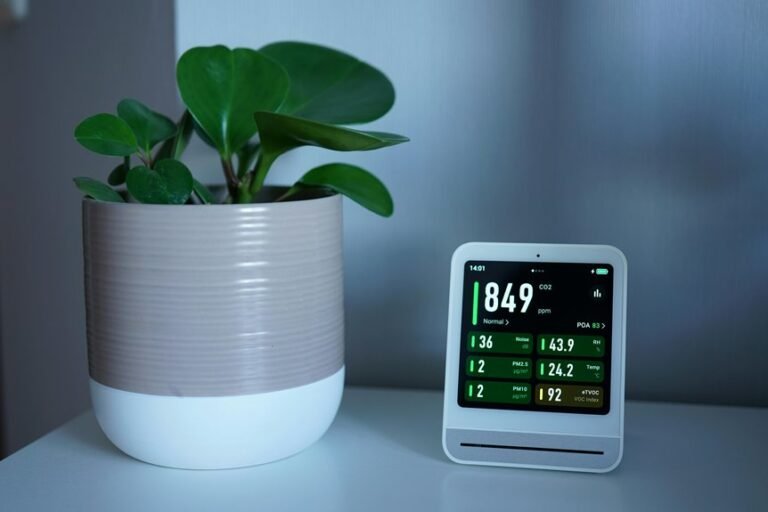
You can read the air quality indicators to see how the machine is sensing and responding to pollutants in real time.
Grasping these display readings helps you verify that your Dyson is purifying efficiently and using the right mode for your space.
Understanding Display Icons
Dyson’s display acts as your control panel, showing the machine’s current status at a glance as you adjust settings and monitor performance. Use it as your icon meaning guide and display symbol reference, so you can operate your purifier with confidence and stay in sync with the Dyson experience.
- Fan icon shows airflow speed changes as you increase or decrease settings.
- Oscillation icon confirms rotation is active and reflects selected movement range.
- Night mode icon indicates quieter operation with a dimmed screen for low-distraction use.
- Wi-Fi icon shows connection status whenever you pair through the Dyson app.
Whenever you recognize these symbols quickly, you’ll control your machine more efficiently, use features correctly, and feel fully at home within the Dyson ecosystem every day.
Reading Air Quality
How do you know when your purifier needs to work harder? Read the Dyson display. It translates data from built-in air quality sensors into simple on-screen graphs and color bands, so you can check your room’s status at a glance. Whenever Auto mode is on, your machine reacts to detected particles and gases without guesswork.
Watch the graph to track pollutant level trends over time. Rising bars mean your purifier is detecting more contamination and might increase airflow automatically. Falling bars show improving conditions as the machine cleans the air.
You can also cycle through readings for specific pollutants, temperature, and humidity on compatible models. Through checking these updates regularly, you’ll use your Dyson like an informed owner, confident that your machine is protecting the space you call home every day.
Pick the Right Mode
To get the best performance from your Dyson air purifier, choose a mode that matches your room conditions and comfort needs. Selecting correctly helps your machine deliver precise airflow, targeted purification, energy saving, and better sleep comfort without overworking the system.
- Use Night mode if you want quieter operation, dimmed display lighting, and steadier airflow for overnight comfort.
- Adjust fan speed manually from 1 to 10 if you need tighter control over airflow strength in changing conditions.
- Enable oscillation to distribute purified air more evenly across the room, especially in larger shared spaces.
- On Hot+Cool models, press the red button for heating if you need purified warm airflow during colder months.
With the right settings, you’ll get the Dyson experience your home deserves every day.
Use Auto Mode for Daily Cleaning
Enable Auto mode on your Dyson air purifier to let the system monitor air quality and respond in real time.
Its onboard sensors automatically adjust purification and airflow as conditions change, so you don’t have to manage settings throughout the day.
This keeps daily cleaning efficient and helps your HEPA+Carbon filter work effectively without unnecessary strain.
Enable Auto Mode
For everyday air cleaning, switch your Dyson air purifier to Auto mode so it can continuously assess air quality and temperature, then purify only whenever needed. This Dyson setting supports auto cleaning with efficient performance, helping you maintain a consistently fresher space without constant manual changes. You’ll feel confident using the brand the way Dyson designed it.
- Press the Auto button on your remote or machine controls.
- Confirm Auto mode appears on the display screen.
- Leave airflow speed unchanged so Dyson manages output automatically.
- Keep the purifier powered on for ongoing smart adjustment throughout the day.
Auto mode works well for daily use in bedrooms, living rooms, and home offices. By enabling it, you join other Dyson owners who rely on simple, intelligent purification that fits seamlessly into your routine every day.
Sensor-Based Air Adjustment
When you use Auto mode each day, your Dyson air purifier relies on built-in sensors to track air quality and temperature in real time, then adjusts purification output automatically as soon as conditions change.
That means you don’t need to keep changing fan speed manually. Instead, you let Dyson sensor responsiveness manage daily cleaning with precision.
As particles or pollutants rise, the machine increases airflow; when conditions improve, it scales back to quieter operation.
This adaptive purification helps you maintain a consistently cleaner, more comfortable room while using the machine the way Dyson designed it.
For best results, keep your purifier powered on in Auto mode during everyday use, especially in occupied spaces.
You’ll feel confident knowing your Dyson is actively responding for your home environment, keeping your space aligned with Dyson performance standards daily.
Daily Filter Efficiency
Auto mode also helps your filters work more efficiently during daily cleaning using matching purification power to real-time air conditions instead of running at a fixed speed throughout the day.
That means your Dyson purifier only increases airflow whenever sensors detect pollutants, supporting filter longevity and more accurate replacement timing for your household routine.
- You reduce unnecessary fan use during cleaner periods.
- You help the HEPA+Carbon filter capture particles strategically.
- You maintain balanced purification without constant manual speed changes.
- You stay aligned with Dyson’s smart, sensor-led design.
For best results, place your machine on a stable surface, keep windows closed whenever possible, and let Auto mode manage daily purification.
You’ll get efficient performance, cleaner air, and a more connected Dyson experience every day at home.
Adjust Fan Speed and Airflow
Adjust airflow to match your room and comfort needs using the fan speed controls on the machine or remote. Your Dyson purifier gives you precise fan speed adjustment across multiple levels, so you can respond to changing air conditions quickly. Press the airflow button to increase or decrease output until circulation feels right for your space.
Use manual airflow settings whenever you want direct control instead of automatic responses. In a larger room, raise the fan speed to push purified air farther. In a smaller area, lower it for quieter, gentler circulation.
You can also use the direction control to send airflow from front to back for personal comfort. Whenever your model includes oscillation, adjust the angle to distribute clean air more evenly and help everyone in the room enjoy consistent Dyson performance daily.
Turn On Night Mode and Timer
Activate Night mode to keep your Dyson purifier running quietly with a dimmed display while you sleep. You’ll reduce noise, maintain purification, and make your room feel calm without interrupting performance. Use the remote or compatible app to access night mode dimming and timer controls quickly.
- Press the Night mode button to lower operating noise and dim the LCD display.
- Open the timer control on the remote or app for easy sleep timer setup.
- Choose how long you want the machine to run before it powers down automatically.
- Confirm your settings, then let your Dyson manage overnight air cleaning efficiently.
This setup helps you stay in control while enjoying the refined Dyson experience. Provided needed, reset your preferences anytime through the same controls for consistent nighttime comfort every night.
Place It for Best Results
For the best purification performance, place your Dyson air purifier on a flat, stable surface where airflow can move freely through the room. Choose a position with nearby plug access and enough clearance around the machine, so Dyson’s engineered circulation works without obstruction. For ideal room placement, set it toward the furthest point, along a wall, or diagonally across the space.
Keep the purifier away from radiators and direct heat sources, and close windows and doors whenever you want the strongest cleaning results.
Use the tilt and direction controls to refine coverage and comfort based on your layout. These airflow direction tips help you send purified air across the room or from front to back for personal cooling. Whenever you position it well, your Dyson performs like it’s designed to.
Connect the Dyson App
Once your purifier is powered on, connect it to the Dyson Link or myDyson app so you can control settings, monitor air quality, and create schedules from your phone.
- Download the Dyson app and sign in to your account.
- Start app setup, then scan or enter the serial number.
- Press the standby button, or hold the onboard button for five seconds.
- Follow the prompts to finish wireless pairing on your Wi-Fi network.
During setup, keep your phone near the machine and use a stable 2.4GHz connection when prompted. Once paired, you’ll access Dyson features that make your purifier feel fully integrated into your home.
You can adjust airflow, switch modes, review air quality reports, and create routines that match how your household lives, breathes, and relaxes every day.
Clean and Maintain Your Dyson Air Purifier
To keep your Dyson air purifier performing at its best, you’ll need to maintain the filter system correctly and handle the machine with care during any service. Always lift the machine using the base with both hands, never using the loop amplifier.
For filter replacement, remove the outer covers, fit the HEPA+Carbon filter securely, and confirm each component clicks into place. If your model includes a catalytic filter, leave it installed because it’s permanent and maintenance-free.
For routine surface cleaning, unplug the purifier and wipe the exterior with a soft, dry cloth. Keep vents clear so airflow stays consistent and Dyson-grade purification remains reliable. After installing a new HEPA filter, reset filter life by holding the Night mode button through the five-second countdown. That keeps your machine synced and ready daily.
Fix Common Dyson Air Purifier Problems
Should your Dyson air purifier isn’t responding as expected, start with the core checks that resolve most issues quickly. You’re part of a Dyson community that values reliable, precise performance, so troubleshoot methodically and confidently.
- Confirm power: check the outlet, plug, and screen. Should needed, perform a power reset via unplugging the unit briefly.
- Inspect filter fit: remove covers, reseat the HEPA+carbon filter, and guarantee each section clicks securely into place.
- Complete filter replacement steps: after installing a new filter, hold the Night mode button for the five-second reset countdown.
- Review setup: place the machine on a flat surface, away from radiators, with doors and windows closed for accurate Auto mode response.
Should controls still fail, try the remote, onboard button, or app reconnection.
Frequently Asked Questions
Can I Use My Dyson Air Purifier With Windows Open?
Yes, you can use your Dyson air purifier with windows open, but it will clean the air less effectively. Open windows let in a steady flow of outdoor particles, pollen, and smoke, so the purifier has to work harder. For the strongest results, keep windows closed during regular use. If you want fresh air from outside, open the windows for a short time, then close them and switch the purifier to Auto mode so it can bring indoor air quality back down to normal.
Does the Purifier Remove Cooking Smells and Pet Odors?
Yes. Cooking smells and pet odors are reduced when your Dyson HEPA and carbon filters are working effectively. Install the filters correctly, replace non permanent filters on time, and use Auto mode to help keep indoor air fresher.
How Much Electricity Does a Dyson Air Purifier Use?
A Dyson air purifier’s electricity use depends on the model, fan speed, heating function, and standby mode. Most models are energy efficient, especially when used in Auto mode, but the exact wattage can vary, so it is worth checking your specific unit.
Is It Safe to Run the Dyson Air Purifier All Day?
Yes, you can run your Dyson air purifier all day if it is set up correctly, plugged into a safe outlet, and used with the filters fitted properly. For all day use, Auto mode is the best setting because it responds to changes in air quality without needing constant adjustment.
Can I Move the Purifier Between Different Rooms Regularly?
Yes, you can move the purifier between rooms regularly. Place it on a flat, stable surface near a power outlet, keep it away from radiators or other heat sources, and leave enough space around it for proper airflow. Moving it will not affect filter maintenance as long as you handle the base with care.